
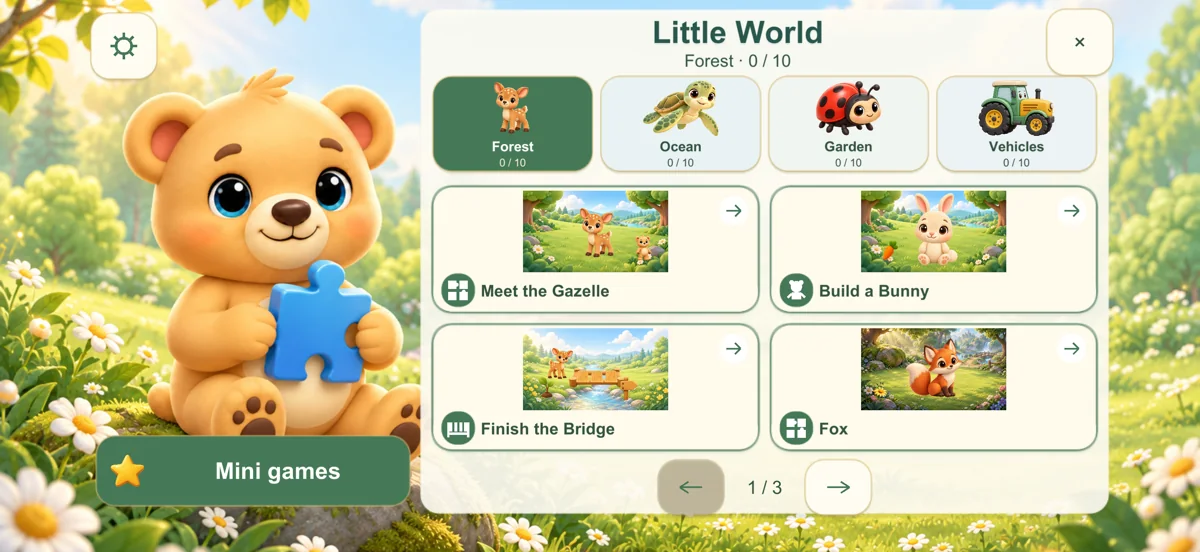
1. Begin with the free Forest
Download Little World from the App Store and open it with your iPhone or iPad held in landscape. Choose Forest, then tap a picture card. The first 10 Forest main levels are free, so you can try the actual activities before deciding about Chapter 1.
The main games include picture puzzles, building and placing objects. Drag a piece toward its matching place. Correct pieces gently settle into position. Short spoken prompts explain the activity.
2. Explore mini games separately
On the home screen, choose Mini games for colors, counting, recognition and shape activities. These are a separate option from the four main worlds. Completing a main level does not mean you need to start a mini game.
In counting activities, move objects one at a time to the target. You might place apples in a crate, daisies in a basket or balloons with Bear. Other activities use animal and vehicle pictures or shape-fitting tasks.
3. Choose language and sound
Open settings and complete the grown-up question to reach the parent area. Language has its own tab. Choose English, Turkish, German, French, Spanish, Italian, Brazilian Portuguese or Arabic.
Music, Effects and Guidance have separate controls. If speech cannot be heard, check Guidance, the device volume and any connected headphones or speakers. The sound settings can be adjusted without changing the game language.
4. Understand Chapter 1
Chapter 1 adds 30 main levels across Ocean, Garden and Vehicles. It is a one-time purchase, not a subscription. Future separate content packs are not part of this purchase. Apple displays the local price before you confirm.
Purchasing and restoring require an internet connection. Once downloaded, the game content can be played offline. In-game purchasing and external-link options are in the parent area.
5. Restore access and keep progress
To restore a purchase, sign in to the App Store with the Apple Account used to buy Chapter 1. In the game’s parent area, choose Packs → Restore purchases. A pending or cancelled transaction does not unlock the pack.
Purchase access and game progress are different. Progress is stored locally on the device; restoring a purchase does not copy another device’s completed activities. If you encounter a problem, try closing and reopening the game before deleting it, as deletion may lose local progress.
6. Find help when you need it
Our support page explains common questions and how an adult can contact us. Describe the level, what happened, app version, device model and iOS or iPadOS version.
You do not need to send a child’s name, photo or recording, your Apple password or payment-card details. Little World has no in-game advertising, child accounts or chat.